
How to use digfone, from start to finish
Eleven steps, and the first one takes under two minutes. You pick both languages and send a link, and your guest just accepts: they install nothing and create no account.
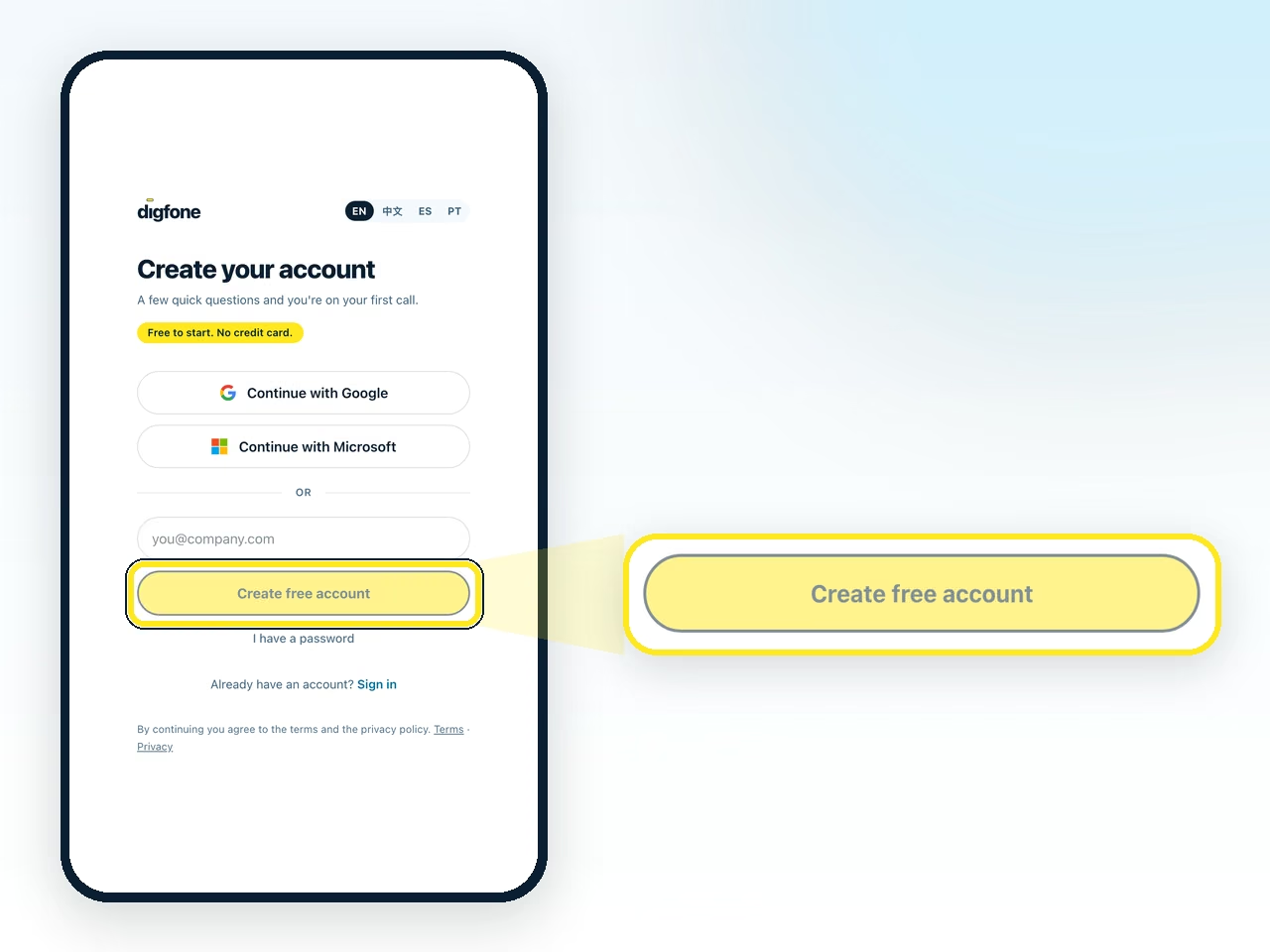
Create your account
Only the person starting the call needs one. It takes a minute, and the free plan asks for no card.
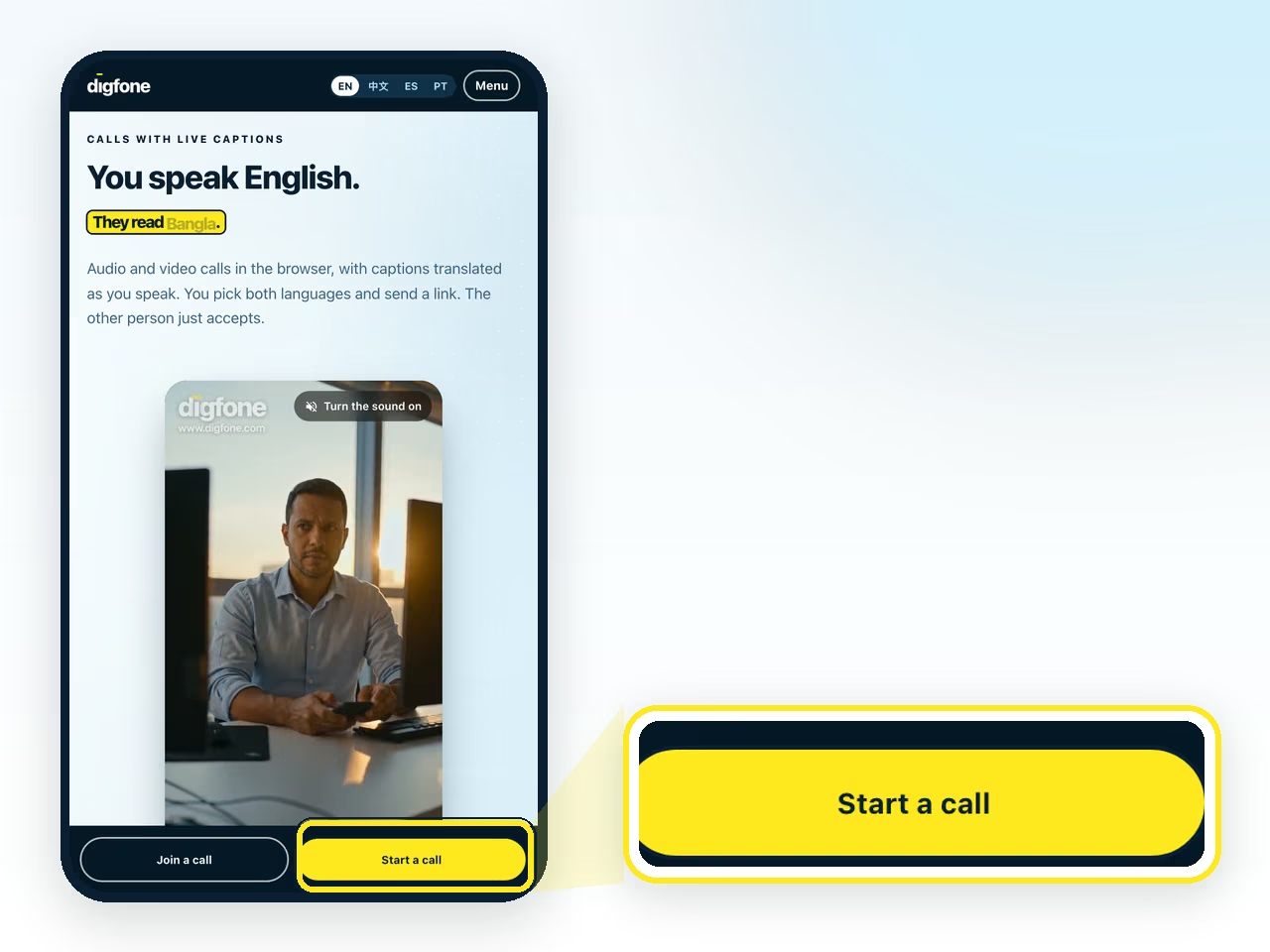
Go to digfone.com and click the button
It is yellow and sits at the top of the page, on a computer and on a phone.
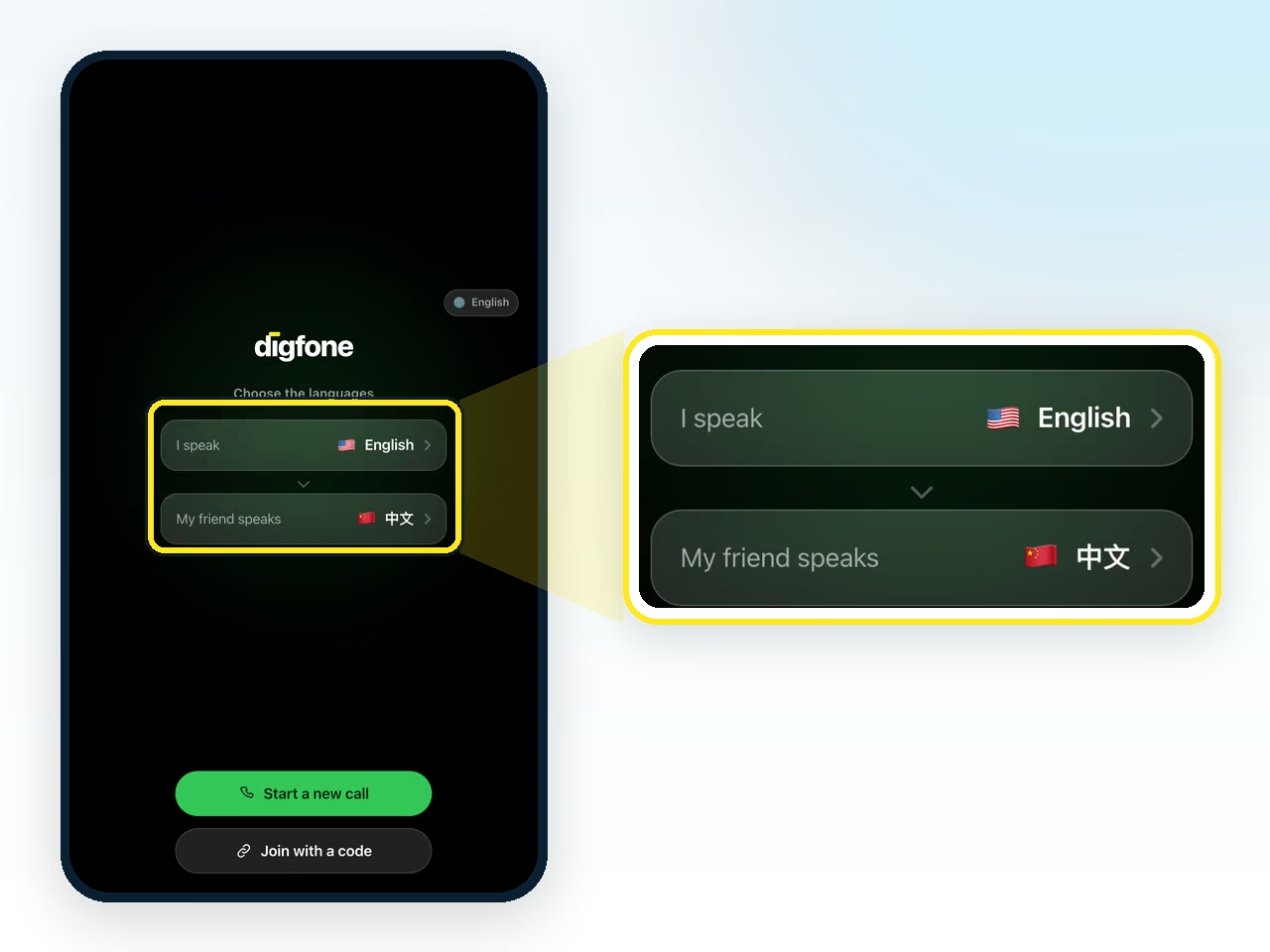
Pick both languages
Under I speak you set your own. Under Other person you set theirs. There are 60 languages and translation works between any pair of them.
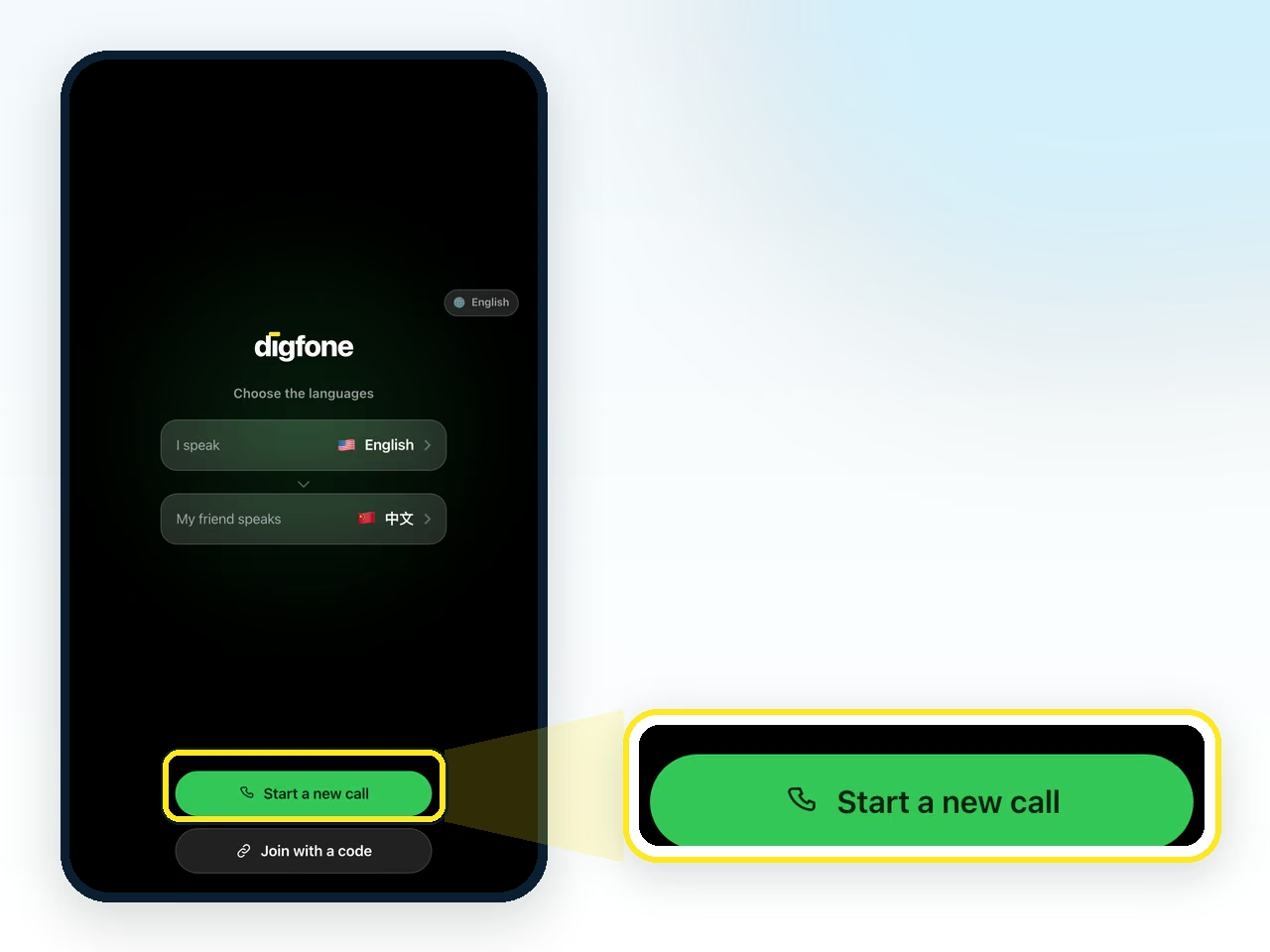
Click to start the call
The call is ready and waiting for your guest to join. Join with a code, on the same screen, is for joining someone else's call.
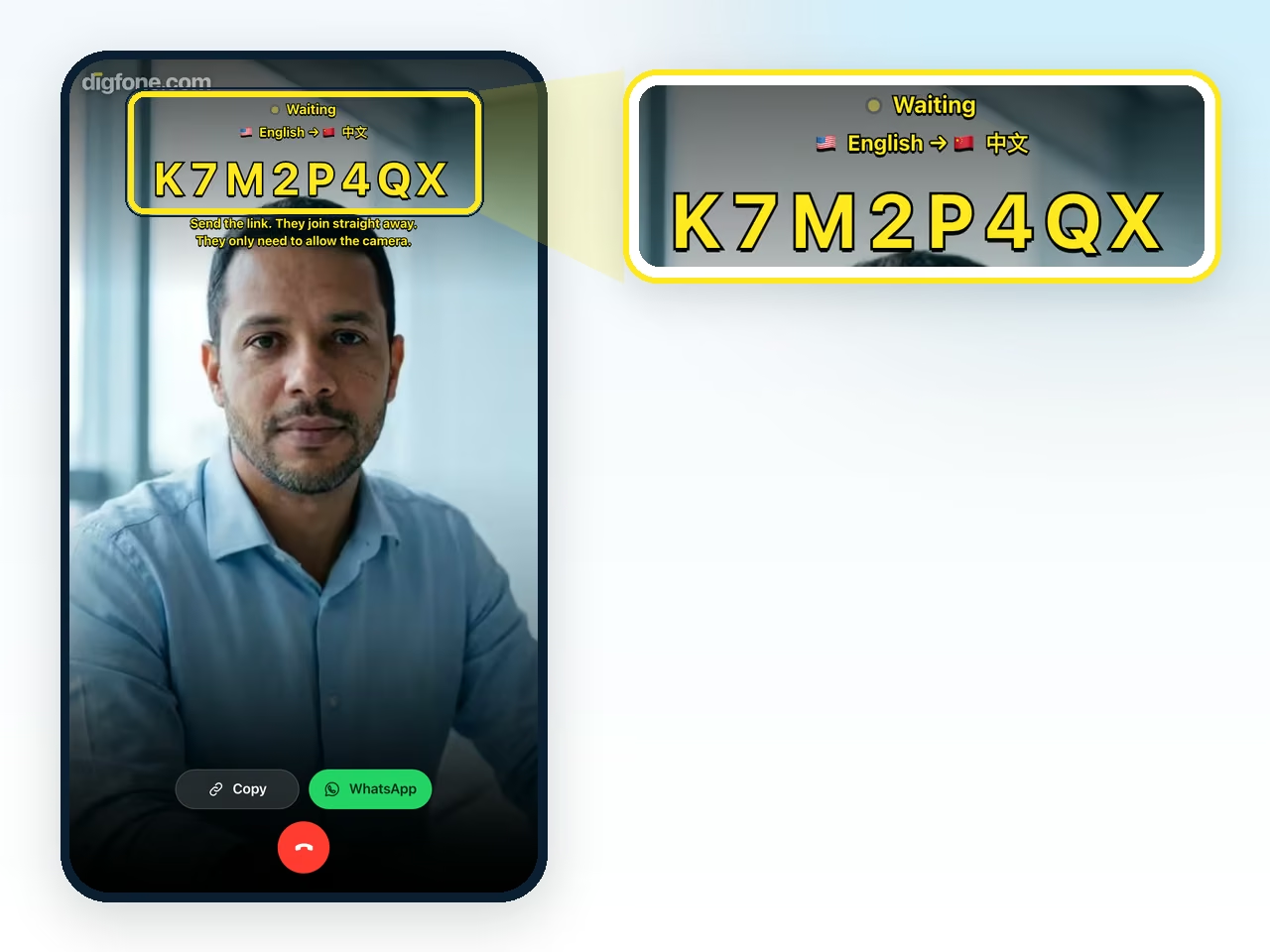
Your camera appears on screen
You see yourself while you wait, along with the room code and the button that copies the link.
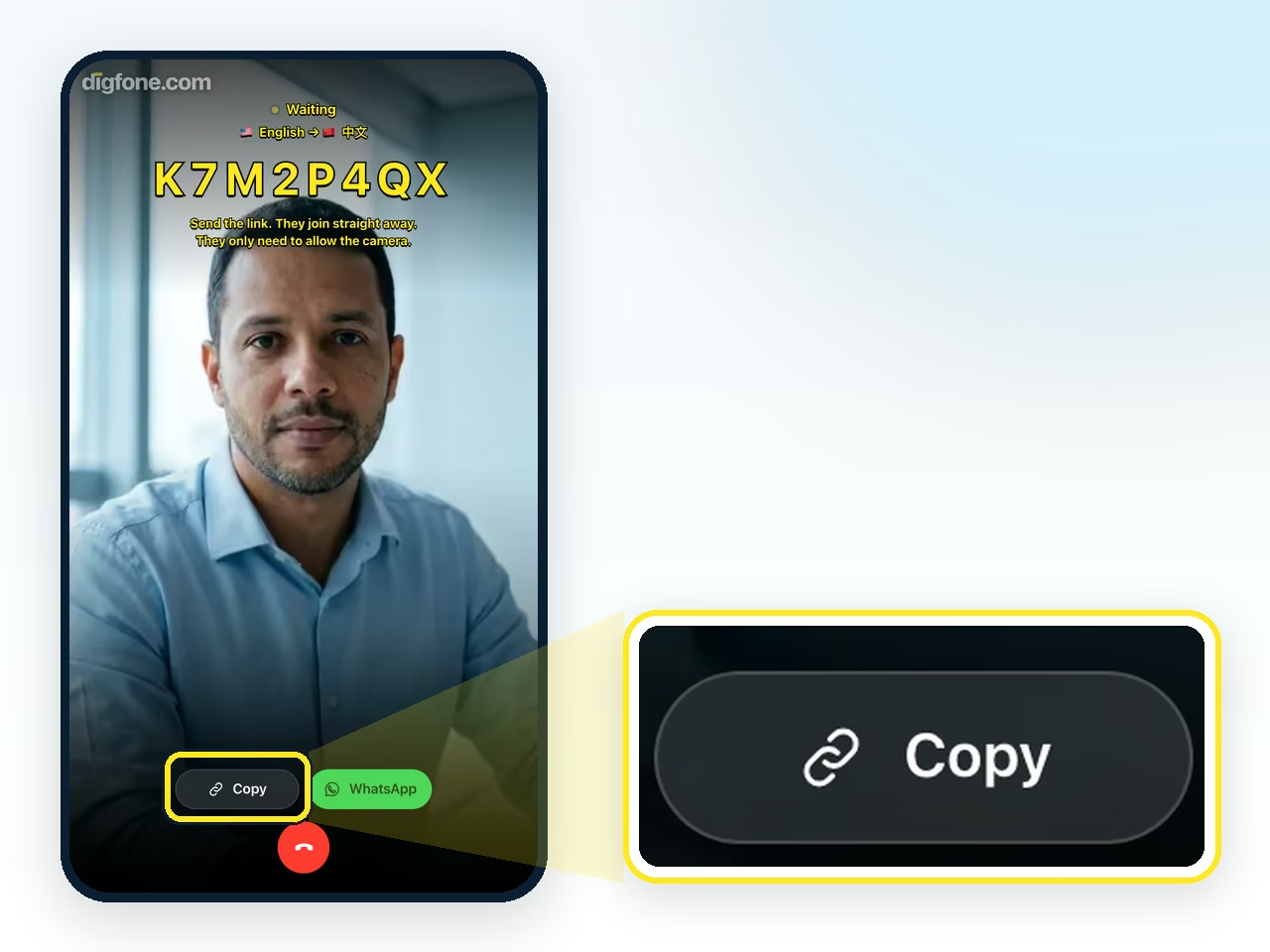
Copy the link
One tap and the address is on your clipboard.
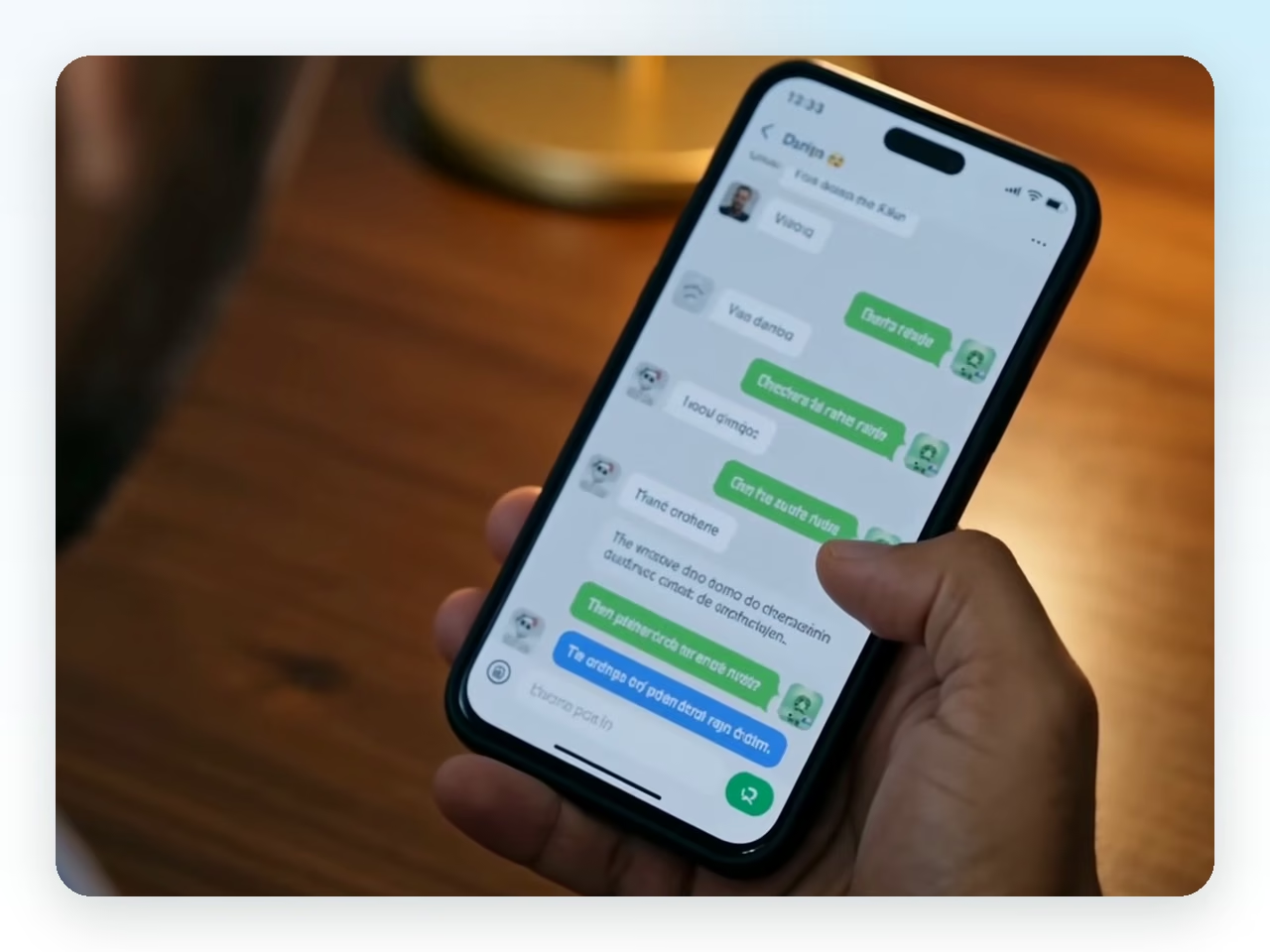
Paste it into WhatsApp or WeChat
Send it in the same thread you already use. The link opens right there, in the app's own browser. For WhatsApp you can skip the pasting: the green button next to Copy opens the chat with the link already written.
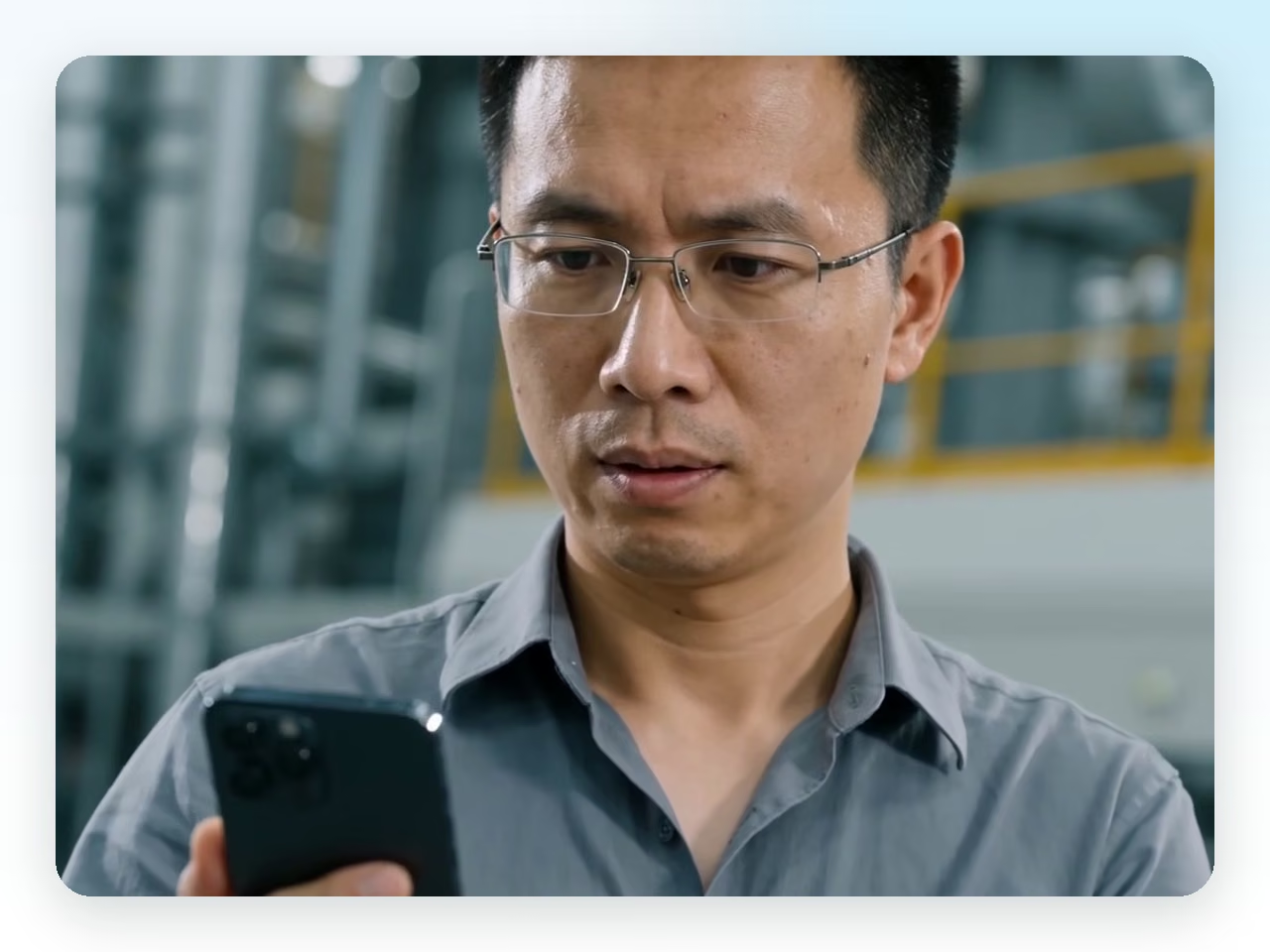
They open the link and come in
Your guest taps the link, confirms their language and allows the camera and the microphone. Your device makes a sound to tell you they have arrived. What they see is under I got a link.
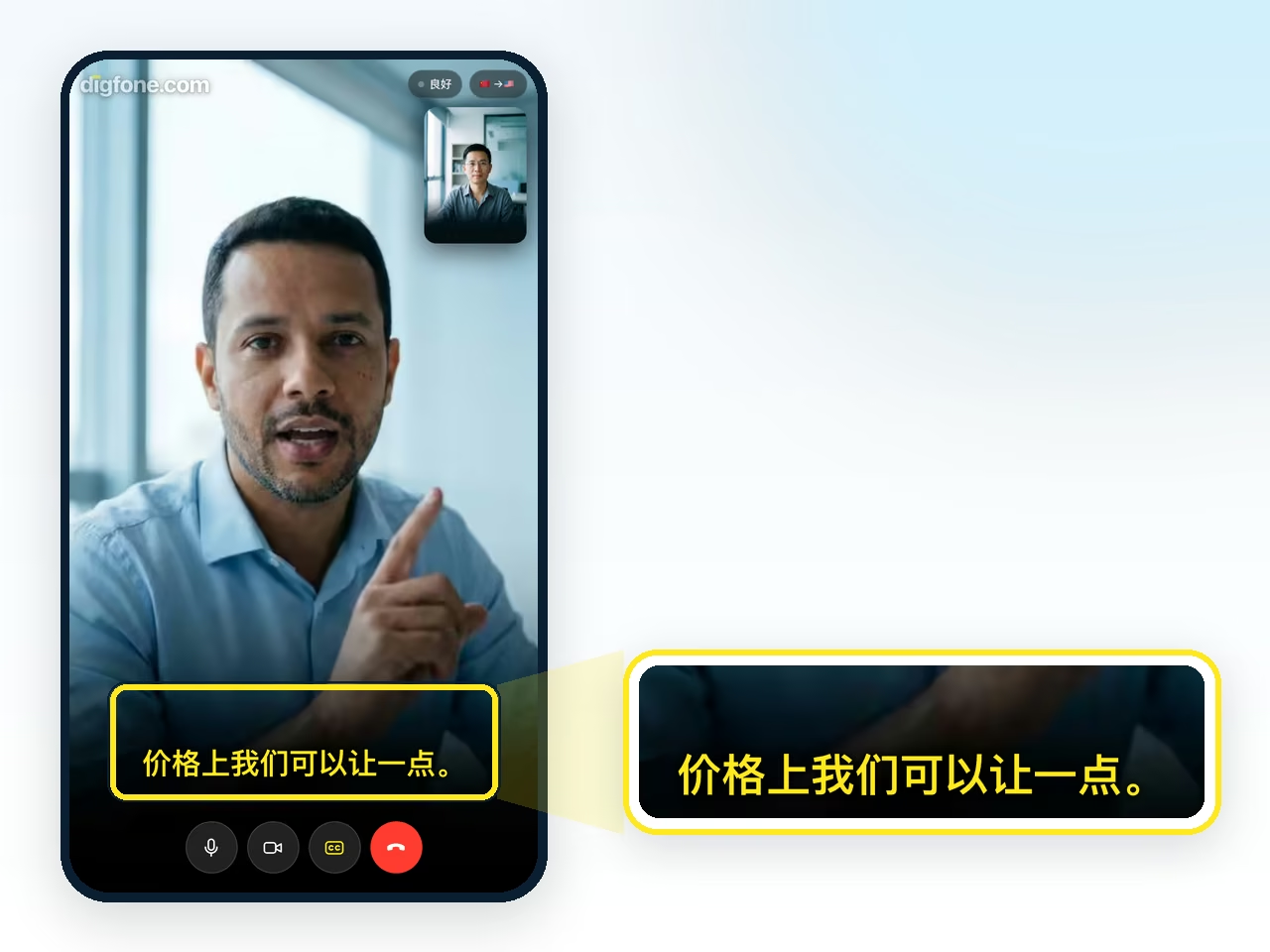
Just talk
You speak English, at your own pace, with no sentence to rehearse. The yellow caption appears on their screen already translated, while you are still speaking.
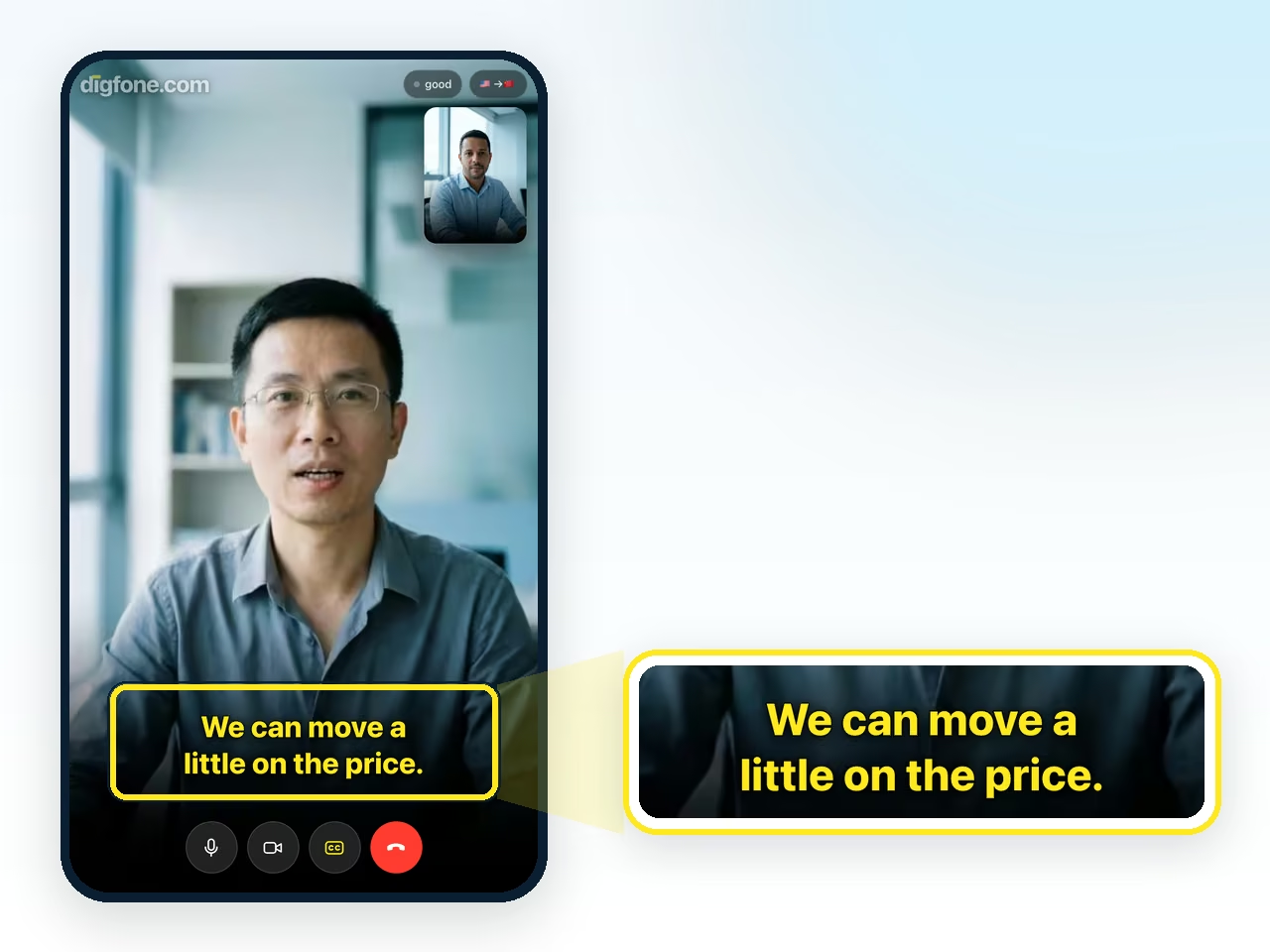
And you read their answer translated
When they speak their language, the caption appears for you in yours. Each person reads in the language they picked.
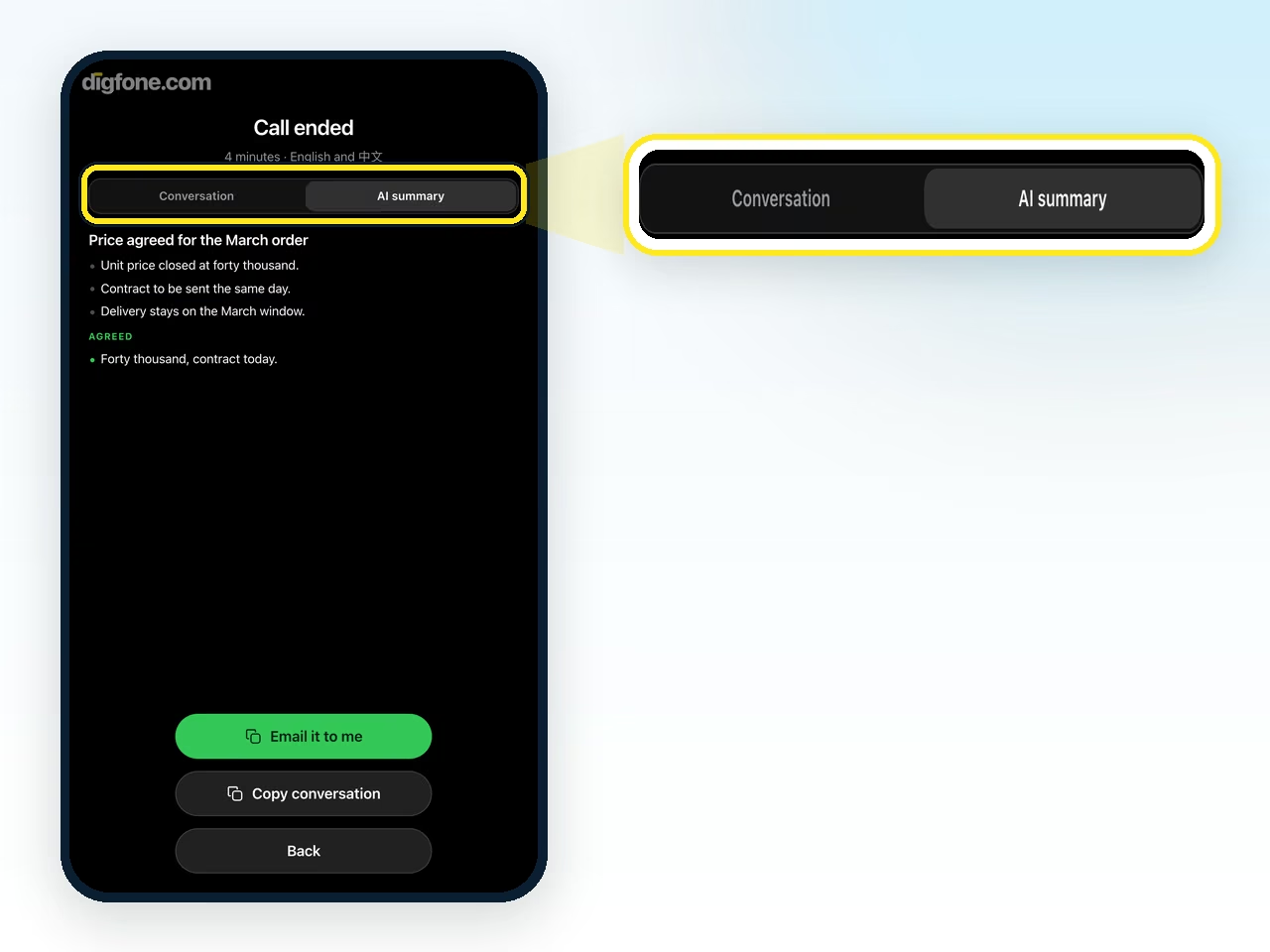
At the end, you both keep the conversation
When the call ends, everything said appears in both languages, with a button to copy it. The AI summary is part of the Basic and Pro plans. The guest can receive an email link to access the record.
I got a link: how do I join?
Whoever gets the link installs nothing and creates no account. It opens in the browser on a phone or a computer, and also from WhatsApp and WeChat.
Open the link
Tap the link you got. The call opens in the browser, and there is nothing to install.
Confirm your language
The first screen asks Which language do you speak? and already has the language the host picked for you. If it is not yours, change it before joining: it is the language you will read the captions in.
Join and allow the camera and the microphone
Tap Join the call. When the browser asks, allow the camera and the microphone: the microphone is how your speech becomes captions for the other person.
If nobody is there yet, wait
The page says nobody else is in the call. Leave the page open: the call starts as soon as the other person joins.
Got only a code?
Open call.digfone.com, tap Join with a code and type the call code.
At the end, the conversation by email
If the conversation was saved, the last screen offers Get it by e‑mail (or Email it to me, if you closed that box before). The email has a link to the text of the conversation, and opening it creates your free account.
Camera or microphone blocked
If the camera or the microphone does not come through, the call carries on with what is available, and digfone tells you on screen what is missing.
No camera
It becomes an audio call, and the translated captions carry on. If another app is using the camera, close that app. To get video back, allow the camera (see below) and reload the page.
No microphone
You still read the captions of what the others say and can use the chat, but your speech does not become captions. Allow the microphone and reload the page.
iPhone or iPad (Safari)
Reload the page and tap Allow when Safari asks. If it does not ask, open Settings, then Safari (on newer versions, Settings, Apps, Safari), and under Camera and under Microphone choose Ask or Allow.
Android (Chrome)
Tap the icon to the left of the address and, under Permissions, turn on Camera and Microphone. Then reload the page. In other browsers the path is usually in the site settings.
WhatsApp and WeChat
The link opens in the app's own browser, and the call tries to start there. On some phones WeChat does not release the camera, and you join with audio and captions. If the microphone does not come through either, open the link in your phone's browser: in WeChat, tap ⋯ at the top right and choose Open in Browser; in other apps, tap ⋮ or Share and choose Open in browser. When the app cannot make the call, digfone itself shows the Open in browser screen with that path.
Make your first one now
Start with the free plan, with no card. Send someone the link and try a call with translated captions.
Start a call